
Sharing
Kryton notes start out private to you. To bring in a collaborator, share the note explicitly.
Sharing a note
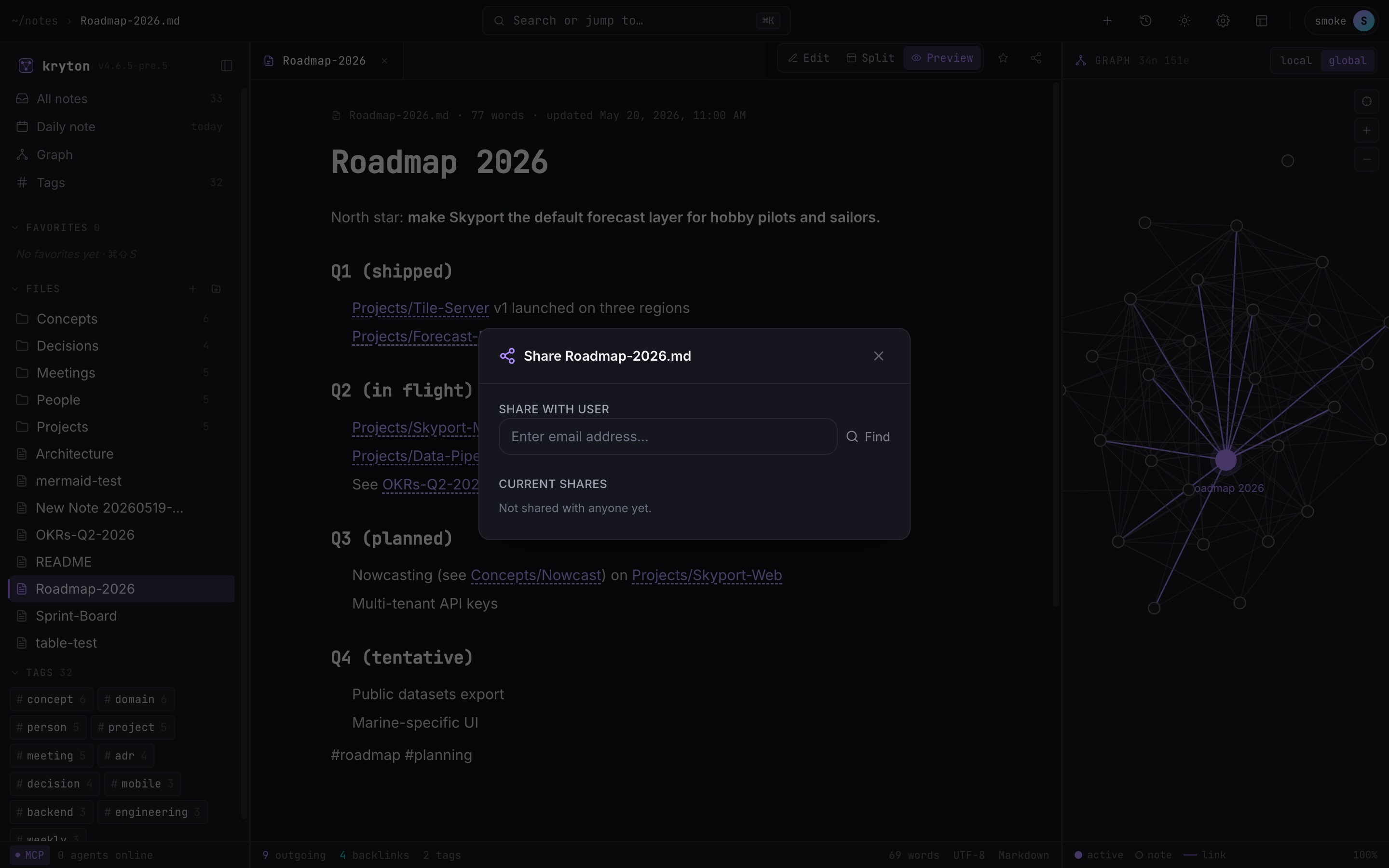
Section titled “Sharing a note”Open a note → click Share in the top right.
 123
123 - Type the email of another user on this Kryton server.
- Find — looks up the user. Once selected, choose Read or Read-Write.
- Anyone the note is already shared with shows up here, with a remove button.
Permissions
Section titled “Permissions”- Read — the other user can open the note and follow its links, but cannot edit.
- Read-Write — full edit access including over the live-collaboration channel; their edits show up in real time and they show up as a presence cursor in your editor.
Folders share too: share a folder, every note inside inherits the permission.
Access requests
Section titled “Access requests”When someone links to a note they do not have access to, they see a “Request access” button. You see the request in Settings → Access Requests with Approve / Deny buttons. Approving converts the request into a share with the permission you pick.