
Get a public, secure URL with Kryton Connect
Your Kryton is running on your machine. Now you want it reachable from your phone, from a friend, or from your AI tools running on a different computer — without compromising the security of your home network.
Kryton Connect is the one-click way to make that happen.
What you get
Section titled “What you get”- A public address like
you.my.kryton.ai— pick any name. - HTTPS, set up for you. No certificates to buy, install, or renew. Your traffic is encrypted end-to-end out of the box.
- No open ports on your router. Connect makes one outbound connection — the same kind of connection your browser makes when you visit a website. Nothing inbound; nothing for port scanners or attackers on the public internet to probe.
- No DNS to manage. No dynamic-DNS service, no router config.
- Your home network stays closed. Only Kryton is reachable, not the machine it runs on and not anything else on your LAN.
- Works from anywhere you have internet — home, cafe, hotel, plane.
It is a paid add-on run by the kryton.ai team. Self-hosting works fine without it; this is the easy button when you want remote access without becoming a part-time network administrator.
Why this is safer than port forwarding
Section titled “Why this is safer than port forwarding”The DIY way to make a home server reachable from the internet is to open a port on your router and aim it at your machine. That works, but it means:
- Your IP is on every scanner list within hours of opening the port.
- Any bug in any software on that port becomes a way in.
- You have to get the firewall, the reverse proxy, and the TLS certificate all right and keep them all up to date.
- A leaked password is enough to log in from anywhere in the world.
Kryton Connect inverts this: your server calls out to a hardened entry point and that entry point relays only the traffic for your subdomain back. Your router never accepts an inbound connection. Your network stays closed.
Set it up in four steps
Section titled “Set it up in four steps”- Sign up. Go to kryton.ai/tunnels/dashboard and create a tunnel. You will be given a token — a long string of letters and numbers. Copy it.
- Open Kryton. Sign in as an admin (the first user you registered).
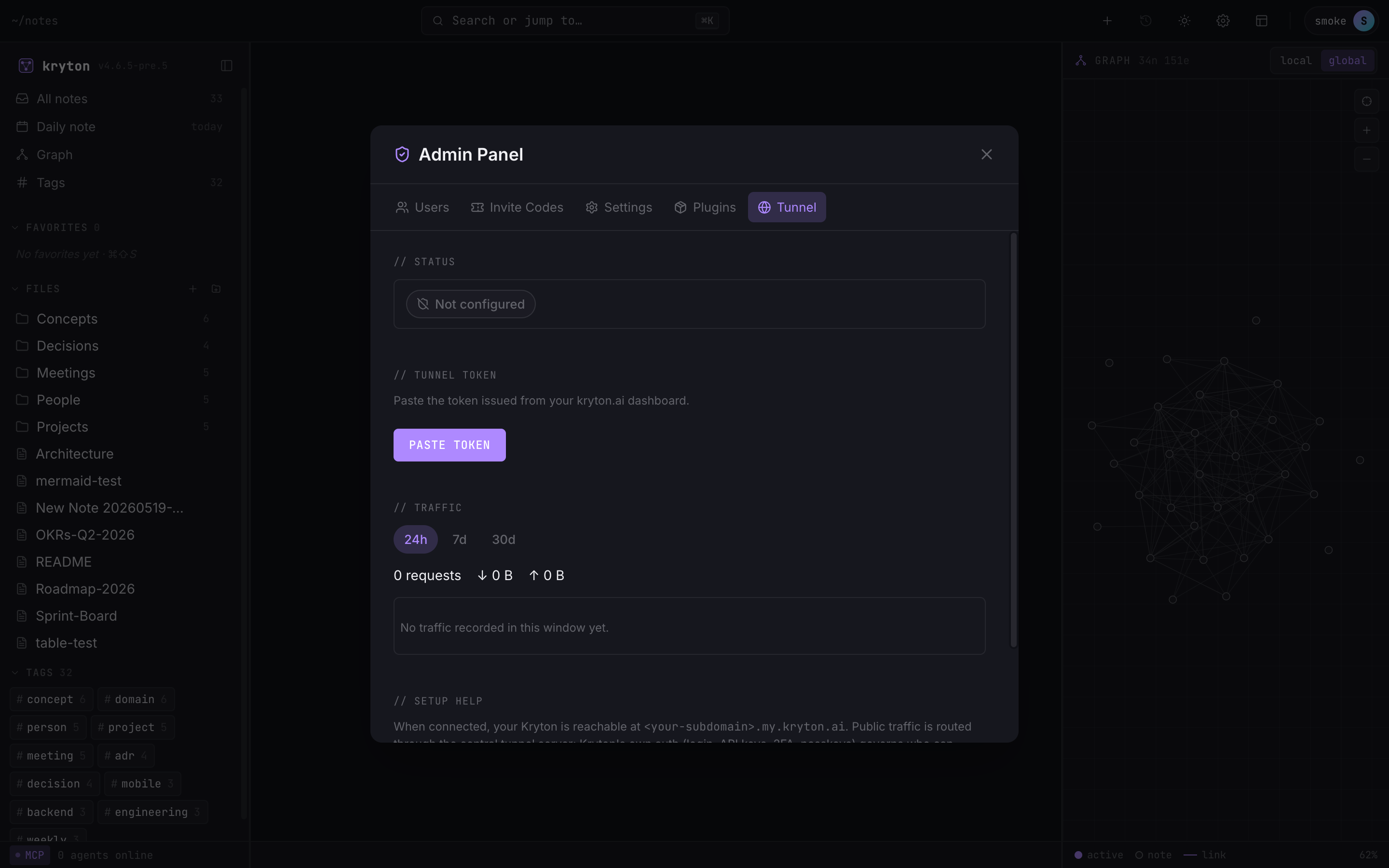
- Paste the token. User menu → Admin Panel → Tunnel → paste into “Token from kryton.ai dashboard” → Save.
 123
123 - Status — shows your subdomain and connection state once a token is set.
- Paste your token from the kryton.ai dashboard here, then Save.
- Traffic — requests and bytes in/out per day, once you are live.
- You are online. The same screen shows your new HTTPS address. Click it to open in a new tab.
That is it. Bookmark the address on your phone, log in there, your notes follow you around — and your router is still closed.
Connecting AI tools to your remote Kryton
Section titled “Connecting AI tools to your remote Kryton”Use the same one-shot installer from Connect your AI,
but when it asks for your Kryton server URL, give it your new
https://you.my.kryton.ai address instead of http://localhost:3000.
Claude, Cursor, Codex, Claude Desktop — all work from anywhere now,
over the same encrypted channel.
Turning it off
Section titled “Turning it off”The Tunnel tab has a Clear button. Press it and your instance is back to being local-only. Nothing else on your machine or network changes.
Prefer to do the networking yourself? Anyone comfortable with a reverse proxy can set up a public URL using Caddy, Cloudflare Tunnel, Tailscale, or similar — see Reverse proxy and TLS in the advanced section. Kryton Connect just bundles those moving parts so you do not have to.