
Your first notes
Kryton is logged-in and empty. Time to put something in it.
1. Make a note
Section titled “1. Make a note”In the left sidebar, click the + next to FILES (or hit ⌘⇧N). A new note opens, focused on the title.
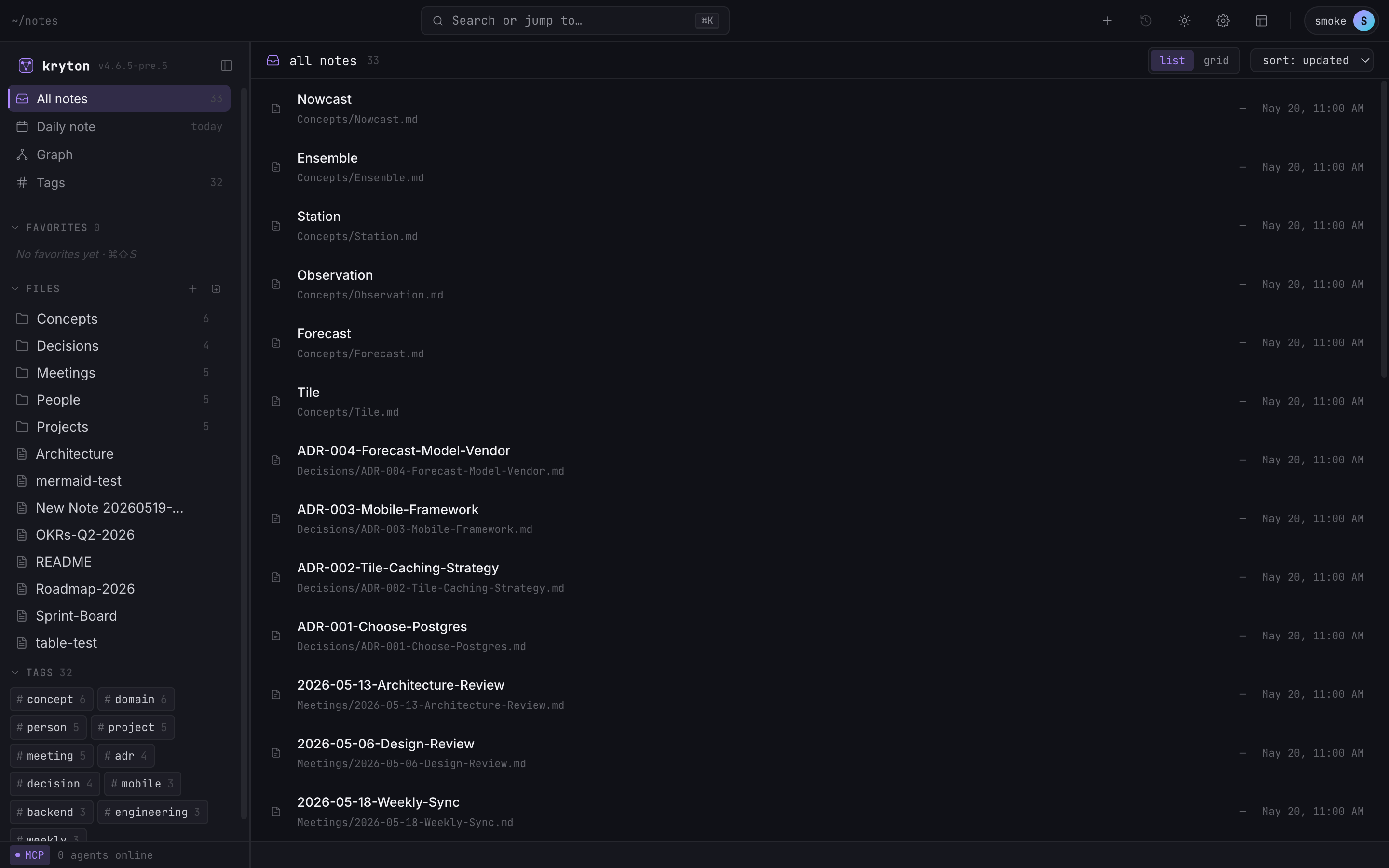 12345
12345 - Command palette — search and jump anywhere (⌘K).
- New note button (⌘⇧N).
- Toggle light / dark theme.
- Top-level sections: All notes, Daily note, Graph view, Tags.
- Files: folders and notes. Right-click for rename, move, delete.
Give it a name (no need to type .md) and press Enter.
2. Write some markdown
Section titled “2. Write some markdown”Kryton is plain markdown. Headings (#, ##), lists (-, 1.), code (`), bold (**bold**) — all standard. The toolbar above the editor inserts these for you if you would rather click than type.
3. Link to another note
Section titled “3. Link to another note”Type two square brackets — [[ — and start typing the name of another note. A picker pops up; pick one, hit Enter.
If you link to a note that does not exist yet, the link still works — it is styled differently to flag it, and once you create that note the link wakes up automatically.
4. Tag it
Section titled “4. Tag it”Anywhere in the note, type # and a word. #idea, #meeting, #project-alpha. The tag becomes clickable in preview and shows up in the Tags view in the sidebar.
5. Open the graph
Section titled “5. Open the graph”Left sidebar → Graph. Every note you have written so far is a dot; every wiki-link is a line. As you add more notes, the graph fills in.
What now
Section titled “What now”- Browse Use → Editor for the formatting toolbar, tabs, and split view.
- Browse Use → Linking and graph for backlinks and the graph filters.
- Wire it to your AI: Connect your AI.