
Install Kryton on Synology
Synology DSM ships Container Manager (DSM 7.2+) — that is all you need to run Kryton on a NAS. Same docker-compose.prod.yml as a desktop install, just driven from the DSM UI.
Prerequisites
Section titled “Prerequisites”- DSM 7.2 or later
- Container Manager installed (Package Center → Container Manager)
- A few GB free on a volume you can write to
- SSH or File Station access so you can drop a folder onto the NAS
1. Pull the repo onto the NAS
Section titled “1. Pull the repo onto the NAS”Over SSH (recommended), as a user with home directories enabled:
cd /volume1/dockergit clone https://github.com/azrtydxb/kryton.gitcd krytoncp .env.example .envNo SSH? Download the repo as a zip from GitHub, unzip on your computer, then drop the folder into a shared folder (e.g. docker/kryton) via File Station.
2. Set the auth secret
Section titled “2. Set the auth secret”Edit .env (File Station → text editor works fine). Set:
BETTER_AUTH_SECRET=<paste any random 32-char hex here>Generate one on your laptop with openssl rand -hex 32 if you do not already have one.
3. Bring it up in Container Manager
Section titled “3. Bring it up in Container Manager”Container Manager → Project → Create → Create docker-compose.yml.
- Project name:
kryton - Path: point at the
kryton/folder you cloned - Source: Use existing docker-compose.yml → pick
docker-compose.prod.yml - Click Next, accept the env (Container Manager reads
.envautomatically), then Done.
Container Manager pulls the images, runs the stack, and shows logs as it boots.
4. Open Kryton
Section titled “4. Open Kryton”Default port is 3000. Open http://<nas-ip>:3000 in any browser on your LAN. Register the first user — that account becomes admin.
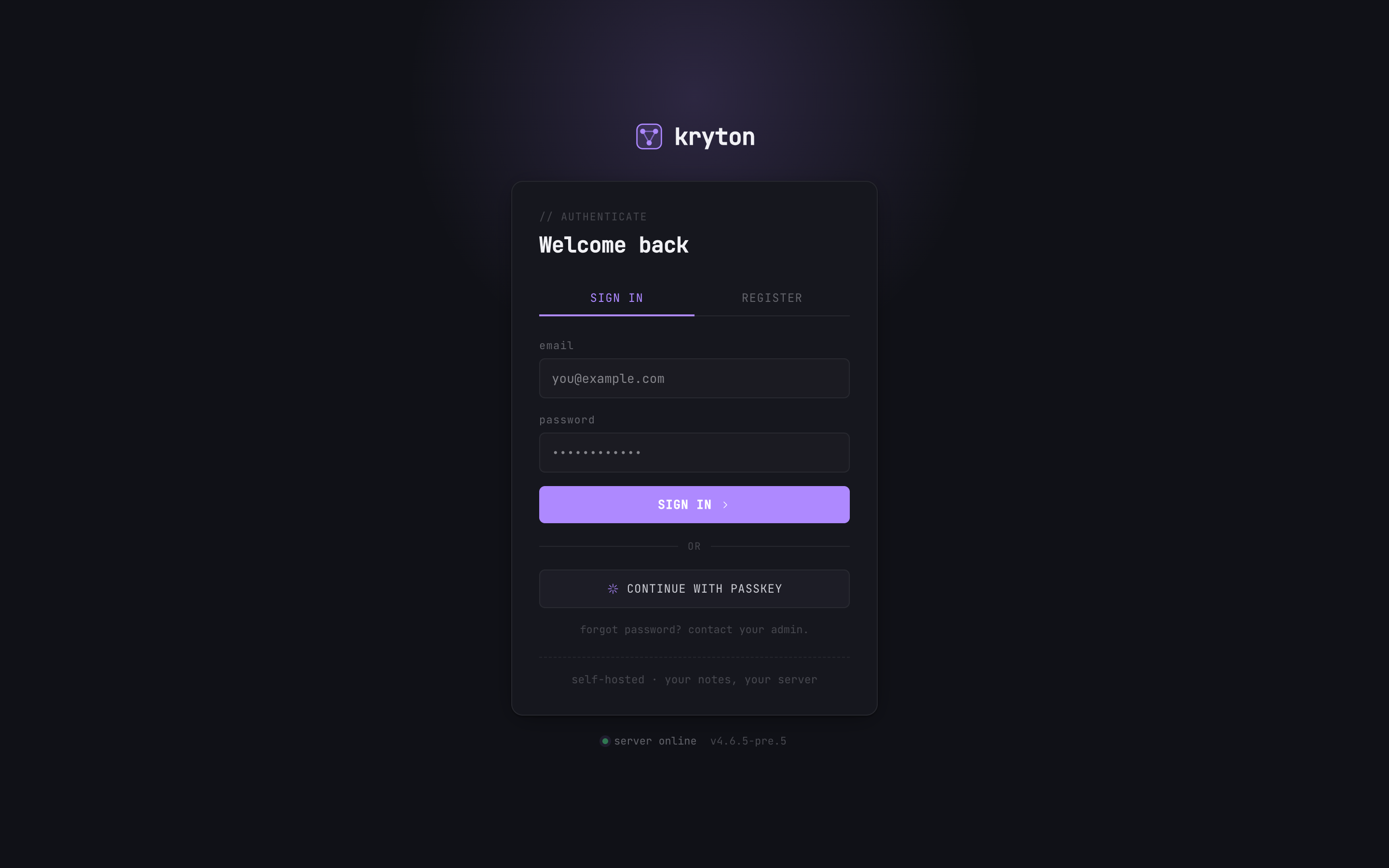 1
1 - Click REGISTER on the first visit. The first account is admin.
Reverse proxy + HTTPS (optional but recommended)
Section titled “Reverse proxy + HTTPS (optional but recommended)”DSM has a built-in reverse proxy with Let\u2019s Encrypt:
- Control Panel → Login Portal → Advanced → Reverse Proxy → Create.
- Source:
kryton.<yourdomain>(HTTPS, port 443). Destination:localhost, port3000. - WebSocket headers: enable Custom header →
WebSocket(so the Yjs collaboration channel works). - Control Panel → Security → Certificate → Add → Let\u2019s Encrypt for the same hostname → assign it to the reverse-proxy rule.
Don\u2019t want to expose a port at all? Use Kryton Connect — your NAS dials out to tunnel.kryton.ai, no router config required.
Updates
Section titled “Updates”In Container Manager → Project kryton → Action → Build with the Pull image option ticked, then Start. The migration runner brings the database forward on boot.
Or over SSH:
cd /volume1/docker/krytondocker compose -f docker-compose.prod.yml pulldocker compose -f docker-compose.prod.yml up -dWhere data lives
Section titled “Where data lives”./notes/inside the project folder — your markdown notes, one folder per user.- A Docker volume managed by the Postgres service — accounts, shares, search index.
Back both up alongside your usual Synology snapshot routine.
Next steps
Section titled “Next steps”- Wire your AI to it → Connect your AI.
- Or skip the reverse-proxy work entirely → Kryton Connect.