
Install Kryton on QNAP
QNAP QTS ships Container Station — Docker + Docker Compose with a GUI. The Kryton install is the same docker-compose.prod.yml as anywhere else, just driven from the Container Station UI.
Prerequisites
Section titled “Prerequisites”- QTS 5.x (or QuTS hero h5.x) with Container Station installed from App Center
- A few GB free on a shared folder you can write to
- SSH or File Station access
1. Pull the repo onto the NAS
Section titled “1. Pull the repo onto the NAS”Over SSH (recommended), as admin or another sudo-enabled user:
cd /share/Containergit clone https://github.com/azrtydxb/kryton.gitcd krytoncp .env.example .envNo SSH? Grab the repo as a zip from GitHub, unzip on your computer, and drop the folder into a shared folder (e.g. Container/kryton) via File Station.
2. Set the auth secret
Section titled “2. Set the auth secret”Edit .env (File Station can open it, or use vi over SSH). Set:
BETTER_AUTH_SECRET=<paste any random 32-char hex here>Generate one on your laptop with openssl rand -hex 32.
3. Bring it up in Container Station
Section titled “3. Bring it up in Container Station”Container Station → Applications → Create → Create Application.
- Name:
kryton - Paste the contents of
docker-compose.prod.ymlinto the YAML field (or load it from disk if your Container Station version supports that). - Container Station will resolve
${VAR}references against the.envfile in the working directory. - Click Validate YAML, then Create.
Container Station pulls the images, starts the stack, and surfaces logs and status under Containers.
4. Open Kryton
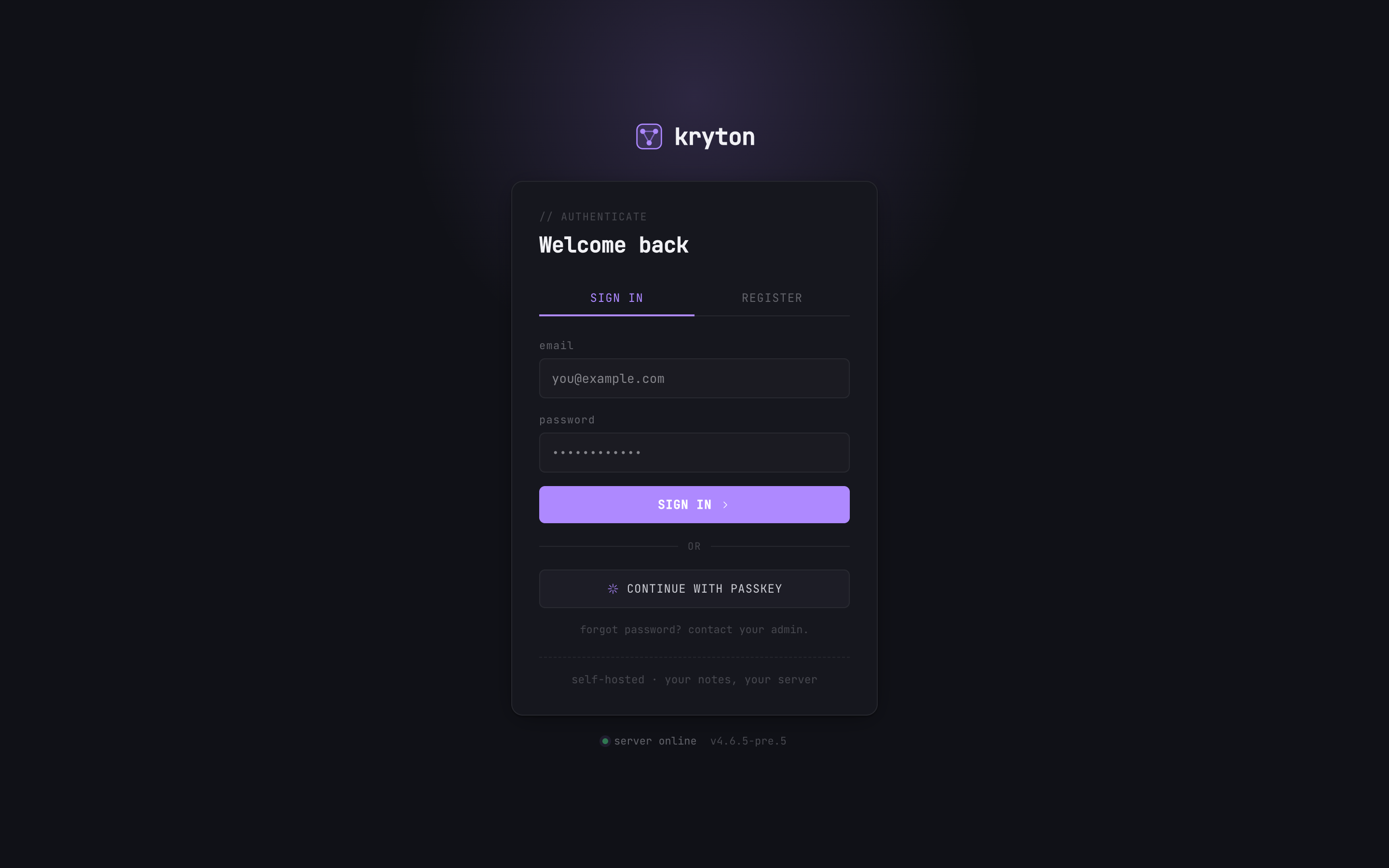
Section titled “4. Open Kryton”Default port is 3000. Open http://<nas-ip>:3000 from any browser on your LAN. Register the first user — that account becomes admin.
 1
1 - Click REGISTER on the first visit. The first account is admin.
Reverse proxy + HTTPS (optional but recommended)
Section titled “Reverse proxy + HTTPS (optional but recommended)”QTS has a built-in reverse proxy:
- Control Panel → Application Servers → Web Server → Reverse Proxy → Add Rule.
- Source:
kryton.<yourdomain>over HTTPS port 443. Destination:localhostport 3000. - Tick WebSocket Support so the Yjs collaboration channel works.
- Control Panel → Security → SSL Certificate → request a Let\u2019s Encrypt certificate for the same hostname.
Don\u2019t want to mess with port forwarding at all? Use Kryton Connect — your NAS dials out to tunnel.kryton.ai and you get an HTTPS URL without touching the router.
Updates
Section titled “Updates”Container Station → Application kryton → ⋮ menu → Recreate with the Pull image option ticked. The migration runner brings the database forward on boot.
Or over SSH:
cd /share/Container/krytondocker compose -f docker-compose.prod.yml pulldocker compose -f docker-compose.prod.yml up -dWhere data lives
Section titled “Where data lives”./notes/inside the project folder — your markdown notes, one folder per user.- A Docker volume managed by the Postgres service — accounts, shares, search index.
Include both in your usual Hybrid Backup Sync (HBS) job.
Next steps
Section titled “Next steps”- Wire your AI to it → Connect your AI.
- Or skip the reverse-proxy work entirely → Kryton Connect.